The Recitation/Lab sessions will involve hands-on exercises designed to
familiarize you with our Linux programming environment, the tools available
within it (since that is the environment, and those are the tools, that you
are encouraged and expected to use), as well as the Java programming
language and its use for problem solving, including the problems that need
to be solved for the submissions.
Here are some things which you will be using throughout the course:
-
Your Linux server
uxx account, how it is set up, its
subdirectories, and how to access it from a PC or Mac using
PuTTY, KiTTY, ssh,
WinSCP, Cyberduck, and possibly other programs.
-
The
bash shell and its configuration file
.bashrc, some basic Linux commands (passwd,
ls, cd, cp, mv,
cat, more, less, pwd,
rm, mkdir, rmdir,
head, tail,
grep, find, diff,
sort,
echo, man, touch), and keyboard
shortcuts for command-line editing (Ctrl+A,
Ctrl+E, Ctrl+U, Ctrl+K,
Alt+D, Ctrl+L)
-
Useful instructor-supplied Linux command aliases/abbreviations for Java
programming, including
getinfo, ll,
cl, fjc, jcr, jcru,
jru, rmc, rmo, rmco,
find_tabs, and find_long_lines as well as the
$pub00 abbreviation for the public directory in
the u00 account (the location of all the sample files you
will need to access), and the $jex abbreviation for the
examples_java subdirectory of that public
directory (the even more specific location of all the Java code examples
you will need to access), and finally $jexz for the subdirectory
containing the zyBook subdirectories with the code from the zybook
-
The
vim editor and its use for Java programming,
including its configuration file (.vimrc on Linux and
the Mac, or _vimrc on Windows) [It's very important to
understand that Vim is a modal editor, and very
confusing if you don't understand this. Not knowing or understanding this
is why many folks give up early on Vim.] So ... it's critical to know
what mode you are in when using Vim, and how to get into
and out of any particular mode: normal mode (also called
command mode), insert mode, visual
mode, search mode, or ex
mode (also called
command-line mode or colon mode).]
-
The
tmux terminal multiplexer, which allows multiple
terminal sessions to be accessed simultaneously in a single window
-
Overview of
jshell, which is very convenient for
Java testing and experimentation, especially the jshell
PRINTING variation, which allows us to use print,
println, and printf without having to use
the System.out prefix all the time
-
Instructor-supplied classes for use in required submissions [See the
legacy course website under
Sample Java Code | jxtra | docs
for the documentation for these classes but you will use the server
copies of these classes.]
-
Shell scripts for program development and testing
-
Jar files, including executable jar files and shell scripts for producing
them [See here for a
summary of jar file information.]
General rules for the weekly hands-on exercises
-
Do not use your test directory, or any
subdirectory in it, as a working directory. Your working directory must
be elsewhere in your account, and the contents of your
test directory must only be whatever is
specifically requested by the hands-on exercise description(s). If your
test directory or its current hands-on
exercise submission subdirectory contains any "extraneous"
files, that will be taken as an indication you've used it as a working
directory for the current hands-on exercise, the instructor will
immediately move on to the next person in line in the Chat window,
which means that you will have to go to the end of the line to have
your evaluation continued.
-
In all Zoom sessions in this course make sure you include both your first
name and your last name as your Zoom identifier.
-
For each hands-on exercise, the output of your submitted program must
have a single blank line at the beginning and a single blank line at the
end. The first non-blank line of output must be a line containing the
programmer name and relevant code_for_today, and this line as well as
the rest of your program's output, must have the same format as that
illustrated by the sample output. This requirement will apply to each
of your hands-on exercise submissions.
-
You must be present during the session when a hands-on exercise is being
conducted, submit only your solution for the current exercise, during
that session, and your solution must be deemed complete and correct for
you to accumulate the points alloted to that exercise (usually 3 or 4
points toward the total for the hands-on exercise category).
-
When you are ready to have your submission evaluated for the first time,
you must enter uxx ready in the Zoom chat window. If you
have to make a revision and re-submit, for the second and all subsequent
submissions just enter (please!) uxx again.
-
If you ask a question, or place a comment, in the chat window, please
insert your uxx account username immediately before your
question or comment.
-
Your weekly hands-on exercise submissions must be left in your
test directory for the duration of the course.
-
Workflow Sequence Reminders (first one for general development, second
one for hands-on exercises):
Edit | Format | Compile | Run | Test
Every Friendly Computer Runs Today
Edit | Add code_for_today | Format | Compile | Run | Test | Copy |
Notify
Every Allseeing Friendly Computer Runs Today Crashing Never
Hands-On Exercise for Week of Mon, Dec 1, 2025
(DigitSumFactor) (code_for_today: K281)
-
For this exercise you must design and write a java program file called
DigitSumFactor.java, which may take any number of
command-line inputs (and at least one), and each one of those inputs must
be a positive integer of no more than three digits. The program first
outputs all the values entered on the command line, all on one line and
in the same order they were entered. Then it outputs a second line of
values, which may or may not actually have any values on it. The values
on this second line are those integer inputs for which the sum of the
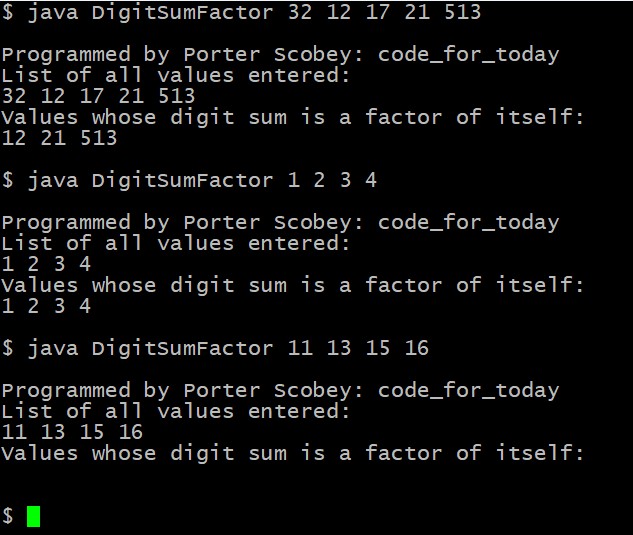
digits in the value is a factor of the value itself. The sample runs in
the screenshot below illustrate sample input and the required output
format, including one example in which there are no input values that
satisfy the criterion so there are no output values. Your program must
exhibit the same behavior as the sample, and have exactly the same output
format. The program does not require any error checking.
-
When you are finished, create the subdirectory
u##/test/DigitSumFactor in your server account,
copy your DigitSumFactor.java to that subdirectory,
and indicate your readiness for testing in the Zoom Chat window.
-
Note:
Here is some text to save you some busy work:
List of all values entered:
Values whose digit sum is a factor of itself:
Hands-On Exercise for Week of Mon, Nov 24, 2025
(SumIntegersAndReals) (code_for_today: D374)
-
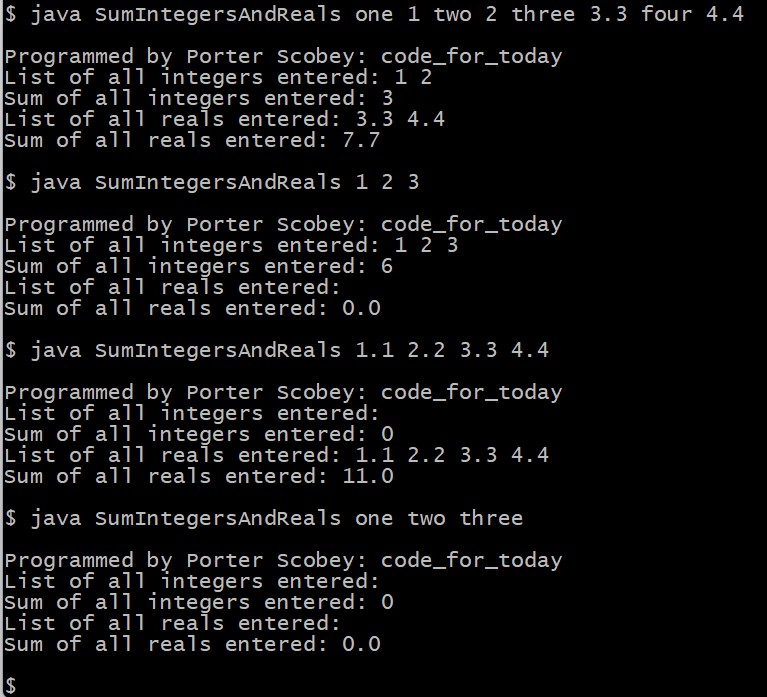
For this exercise you must design and write a java program file called
SumIntegersAndReals.java, which may take any number of
command-line inputs, and each one of those inputs may be an integer
(positive or negative), a real number (floating-point value, positive or
negative) or a string, and the values may appear in any order. The
program must first output all the integers and then the sum of those
integers. Next, the program must output all the real numbers and then the
sum of those real numbers. If there are no integers, the sum output must
be 0 and if there are no real numbers the sum output must be 0.0. The
sample runs in the screenshot below illustrate sample input and the
required output format. Your program must exhibit the same behavior as
the sample, and have exactly the same output format. The program does not
require any error checking. Note, however, that any strings in the input
are simply ignored.
-
When you are finished, create the subdirectory
u##/test/SumIntegersAndReals in your server account,
copy your SumIntegersAndReals.java to that subdirectory,
and indicate your readiness for testing in the Zoom Chat window.
-
Note:
Here is some text to save you some busy work:
List of all integers entered:
Sum of all integers entered:
List of all reals entered:
Sum of all reals entered:
Hands-On Exercise for Week of Mon, Nov 17, 2025
(SortUniqueNamesFromFile) (code_for_today: J343)
-
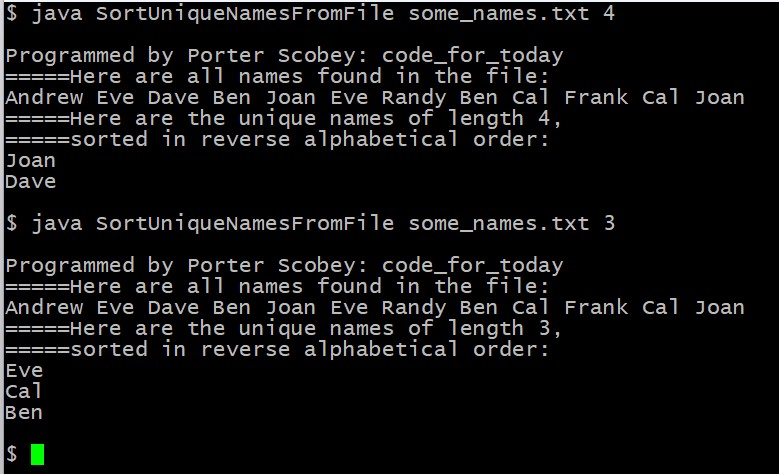
For this exercise you must design and write a java program file called
SortUniqueNamesFromFile.java, which takes two inputs from
the command line. The first input must be the name of a textfile
containing any number of first names, which may appear on different lines
or on the same line separated by differing numbers of blank spaces. The
second command-line input must be a positive integer indicating the
length of the names which the program must identify. The program must
first display on a single line all the names it finds in the file (in the
order in which it finds them, including duplicates, and separated by a
single blank space. Then the program must find the names of the specified
length and print them out, one per line, in reverse alphabetical order,
and there must be no duplicates in this list. The sample runs in the
screenshot below illustrate sample input and the required output format.
Your program must exhibit the same behavior, and have exactly the same
output format. The program does not require any error checking. Note,
however, that you will have to create your own sample input file(s) of
names for testing.
-
When you are finished, create the subdirectory
u##/test/SortUniqueNamesFromFile in your server account,
copy your SortUniqueNamesFromFile.java to that subdirectory,
and indicate your readiness for testing in the Zoom Chat window.
-
Note:
Here is some text to save you some busy work:
=====Here are all names found in the file:
=====Here are the unique names of length ?
=====sorted in reverse alphabetical order:
Hands-On Exercise for Week of Mon, Nov 3, 2025
(OddDigitSums) (code_for_today: K343)
-
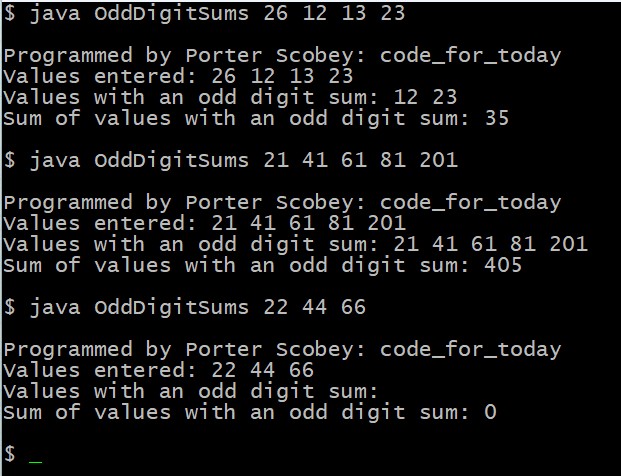
For this exercise you must design and write a java program file called
OddDigitSums.java, which takes any number of command-line
inputs, each of which must be a positive integer. The program must then
compute and display the sum of all of the inputs for which the sum of
the digits in the input value is an odd number. If none of the input
values has an odd digit sum, or if there are no input values at all, the
reported sum must be 0. The sample runs in the screenshot below
illustrate sample input and the required output format. Your program must
exhibit the same behavior, and have exactly the same output format. Note
that either or both of the middle two lines of output may have no values
in the display. The program does not require any error checking.
-
When you are finished, create the subdirectory
u##/test/OddDigitSums in your server account, copy your
OddDigitSums.java to that subdirectory, and indicate your
readiness for testing in the Zoom Chat window.
-
Note:
There are several things to do in this example, and different ways to do
each one, and though you don't need to use it you may want to
think about how you could use the
java.util.function.IntPredicate functional interface
illustrated by the example shown in this
link. In any case, whether you use this or not, you should
definitely make an effort to use one or more lambda functions in this
exercise.
Hands-On Exercise for Week of Mon, Oct 27, 2025
(SortCLNames) (code_for_today: M345)
-
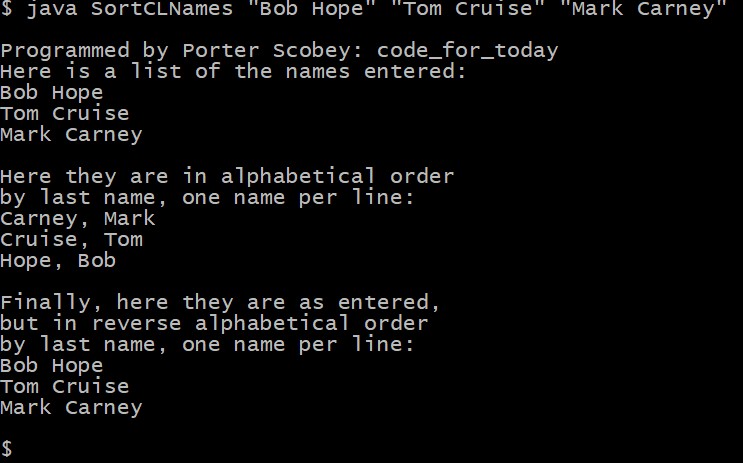
For this exercise you must design and write a Java program file called
SortCLNames.java, which takes any number of command-line
inputs. Each command-line input is a name, and each "name" must consist
of a single first name and a single last name, separated by a single
blank space. All of the names input are then output in three different
ways, illustrated by the sample run in the screenshot below. Your program
must exhibit the same behavior, and have exactly the
same output format. The program does not require any error checking.
-
When you are finished, create the subdirectory
u##/test/SortCLNames in your server account, copy your
SortCLNames.java to that subdirectory, and indicate your
readiness for testing in the Zoom Chat window.
-
And note ... to save you some busy work, here is the
exact wording (but not the exact format) for the output text:
- Here is a list of the names entered:
- Here they are in alphabetical order by last name, one name per
line:
- Finally, here they are as entered but in reverse alphabetical
order by last name, one name per line:
Hands-On Exercise for Week of Mon, Oct 20, 2025
(CheckPalindrome) (code_for_today: B721)
-
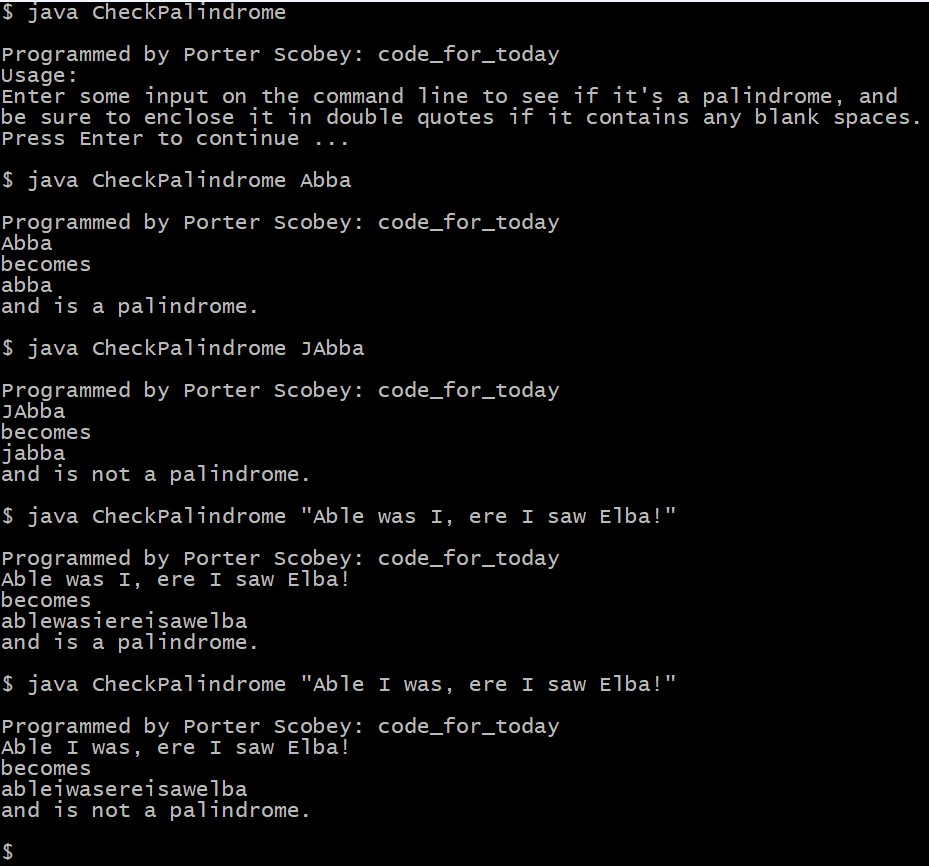
For this exercise you must design and write a java program file called
CheckPalindrome.java, which may or may not have any
command-line input. If there is no command-line input, the program must
output a brief "program usage" message, then pause until the user presses
Enter to continue. If there is any command-line input, and there may be
any amount of command-line input, the program must then examine the input
to see if it is a palindrome. To simplify this process, before actually
testing the palindromic property, the program must remove from the input
all characters except letters and convert all letters to lowercase. The
sample runs in the screenshot below illustrate sample input and the
required output format, for three different scenarios: no input at all,
palindromic input, and non-palindromic input. Note that the program does
not pause at the end of the output except for the case when there is no
input. Your program must exhibit the same behavior as the sample, in all
cases, and have exactly the same output format. The program does not
require any error checking.
And don't forget the required blank line before and after your
program output, as shown in each sample output below (as required in
previous hands-on exercises, but too often overlooked).
Important Note
You cannot use Utils.pause() and compile with
jcru for this program, since it will not be tested in that
way.
So ... you need to use an "ordinary" pause in your program for the
case when there is no command-line input.
See misc/HelloWithPause.java for a "pause reminder",
if necessary.
-
Another requirement of this exercise is that you must
write a boolean recursive method called
isPalindrome to test whether you have a palindrome or not.
-
When you are finished, create the subdirectory
u##/test/CheckPalindrome in your server account,
copy your CheckPalindrome.java to that subdirectory,
and indicate your readiness for testing in the usual way.
Hands-On Exercise for Week of Mon, Oct 6, 2025
(SwitchDigitPairs) (code_for_today: E178)
-
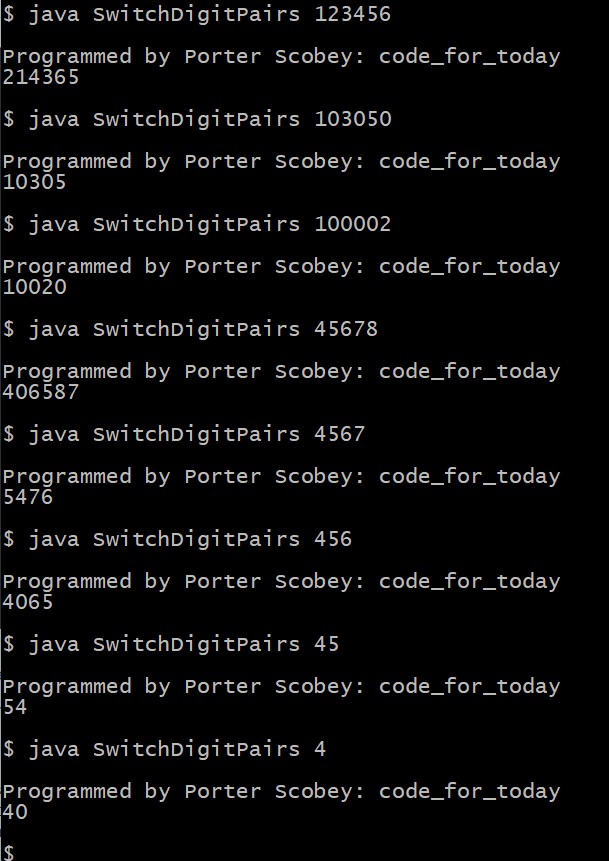
For this exercise you must design and write a java program file called
SwitchDigitPairs.java, which takes as its single
command-line input a positive integer containing no more than six digits.
The program then finds and displays the integer that has each pair of
digits in the integer (starting from the right) reversed. Each input
value is treated as if it contains an even number of digits, so if the
input value in fact has an odd number of digits, it is treated as if its
first digit is 0. The sample runs in the screenshot below illustrate
sample input and the required output format. Your program must exhibit
the same behavior as the sample, and have exactly the same output format.
The program does not require any error checking.
-
When you are finished, create the subdirectory
u##/test/SwitchDigitPairs in your server account,
copy your SwitchDigitPairs.java to that subdirectory,
and indicate your readiness for testing in the Zoom Chat window.
Hands-On Exercise for Mon, Sep 29, 2025 (JarSample) (code_for_today:
A322)
-
Hint: This hands-on exercise should be the easiest, and quickest to
complete, of any that you will do this term, provided you have attended
all of our sessions and understood all that we discussed. If so, your
workflow this time should go like this: Read the description below, copy
three files to your working directory, make a few minimal changes,
compile the .java file to get the .class file, run the modified script to
create your executable jar file, run the jar file to confirm the output.
Finally, wait for the code_for_today, insert the code_for_today and
repeat the running of the script and jar file as a final test, then
submit and announce (all during the second session on Monday).
-
This exercise will continue your familiarization with two of the
instructor-supplied classes required for use in Submission 01. You will
also need these classes for all of the later Java program submissions.
So, for this exercise you must use the
OpeningScreen class
to produce the opening screen when your program runs, and the
TextItems class to produce the other two screens that follow
the opening screen. The exercise also requires you to produce an
executable jar file named JarSample.jar that
contains everything needed to run your program. When run, your program
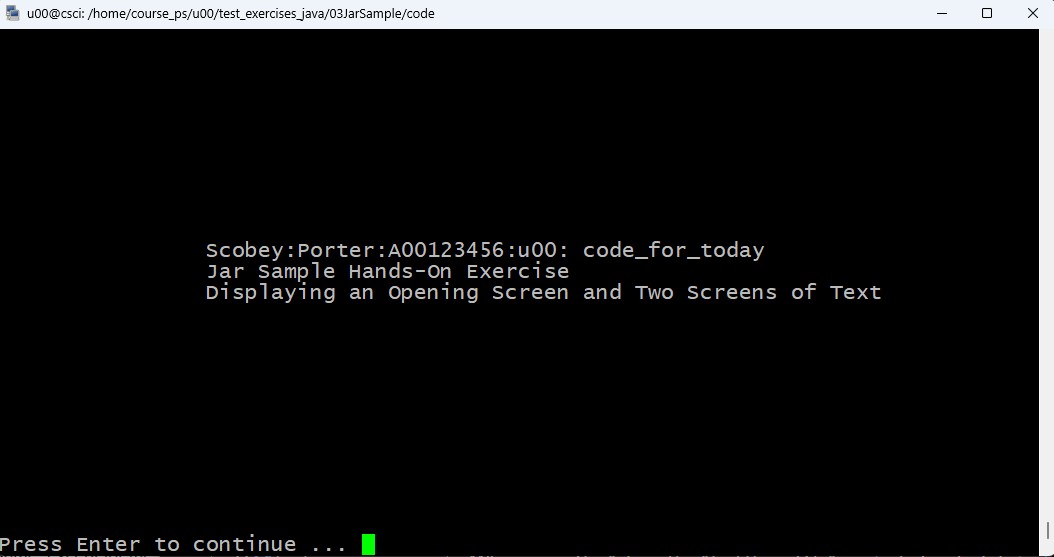
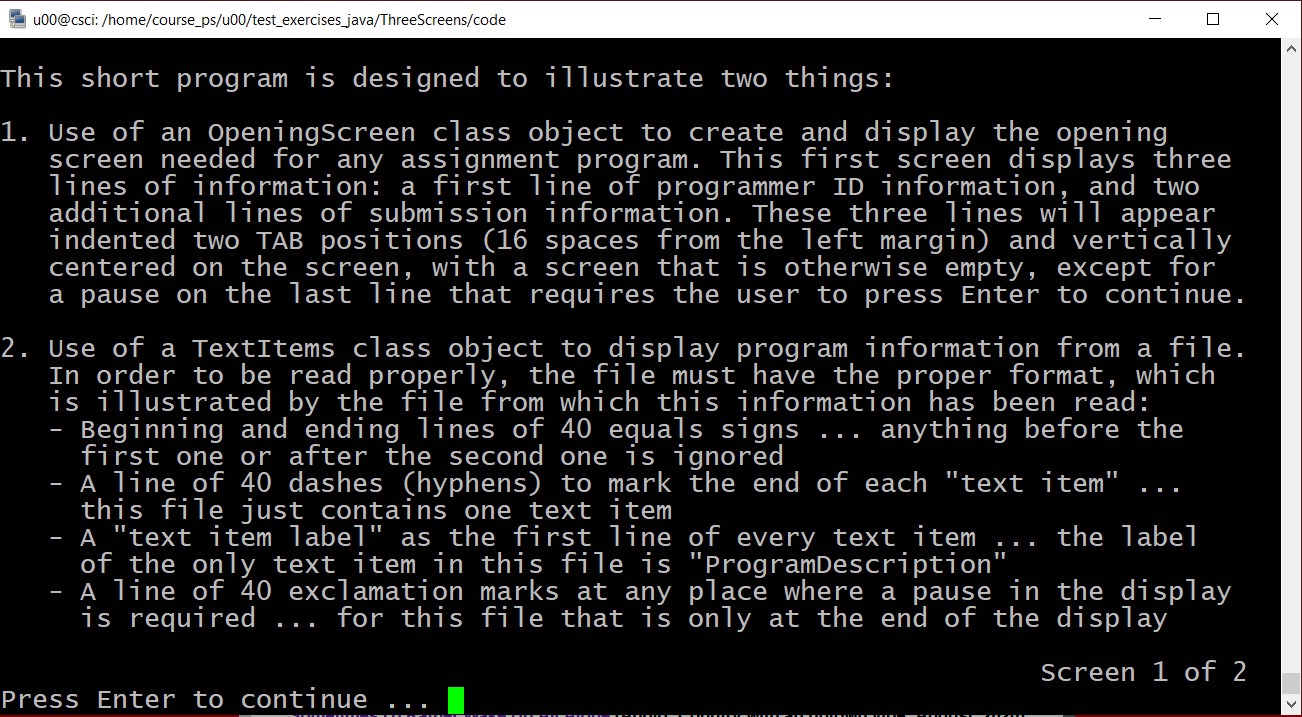
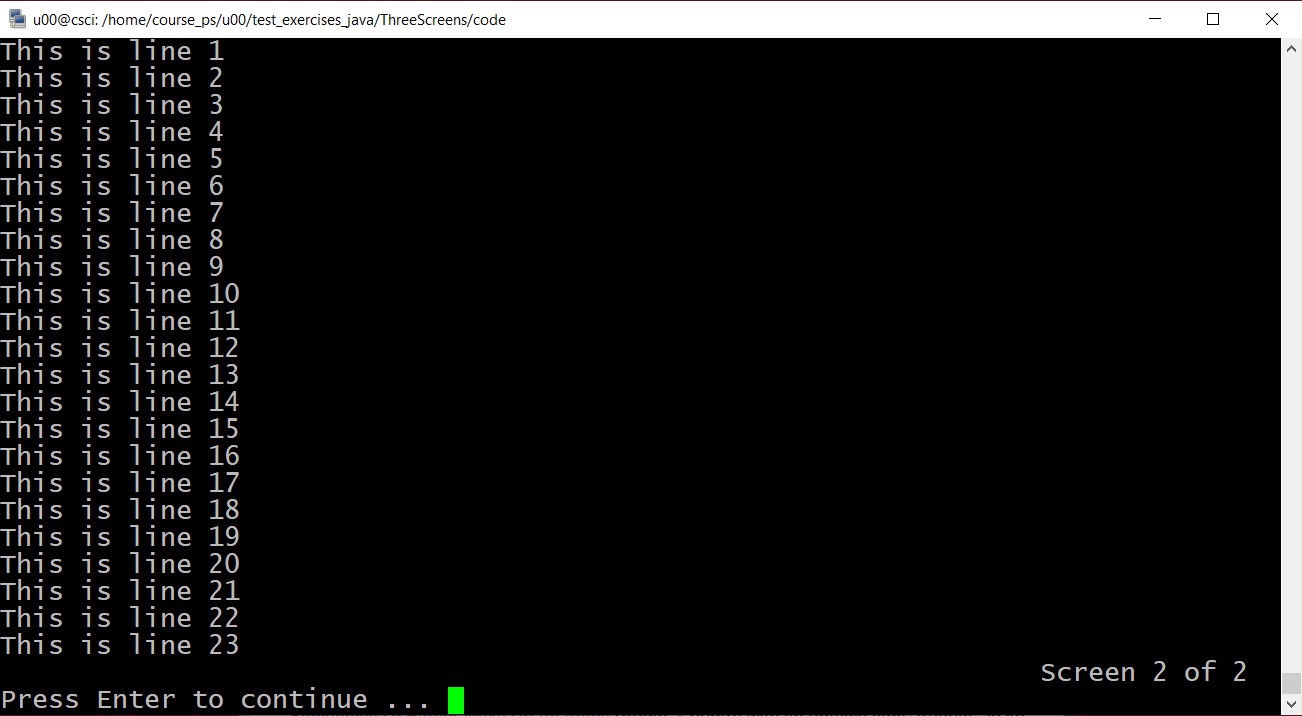
must produce three screens like the following three screens, one after
the other, in the listed order, and then terminate when the user presses
Enter: Screen1.jpg, Screen2.jpg and Screen3.jpg. So this exercise
also assumes you are familiar with our discussion of the contents of the
sample code directory JarTest (which we discussed, among
many other things, during the double session on Monday, September 15),
since you will need to create a version of the jar_b.sh
script file seen there to create the executable jar file for this
exercise.
-
To see exactly how your program for this exercise must behave, you can
copy and run the sample executable jar file
DemoJarSample.jar found in the $pub00
directory. Make sure you run it in an 80 by 25 window, not an 80 by 24
window.
-
It should be obvious that Screen1 is produced by displaying an
OpeningScreen object, and your first screen must look
exactly the same, except for the first line, which must contain
your ID info and (of course) the code_for_today, once it
becomes available. The second and third screens are produced by
displaying the single "text item" from the "TextItems file"
JarSample.txt. That file is also available in
$pub00 and it contains almost everything you need. It is
missing the content of one line and the reason it is missing that content
is that leaving it out requires (first) that you have read and understood
the required format of such a file (which you should already have done,
by the way). And (second) you need to read the JarSample.txt
file itself, which tells you what the missing content is.
See under Sample Java Code | jxtra | docs on the course
legacy home page for the documentation of all the instructor supplied
classes, including OpeningScreen and TextItems,
and a description of the required format for a "TextItems
file" (a file having the proper syntax to be correctly displayed by an
object of the TextItems class).
-
When you are finished, create a subdirectory called
JarSample in the test directory of your
u## account and copy your JarSample.jar file
as well as your JarSample.java file to that directory, then
announce that you are ready for testing in the usual way.
Hands-On Exercise for Week of Mon, Sep 22, 2025 (MakeGrid) (code_for_today:
E186)
-
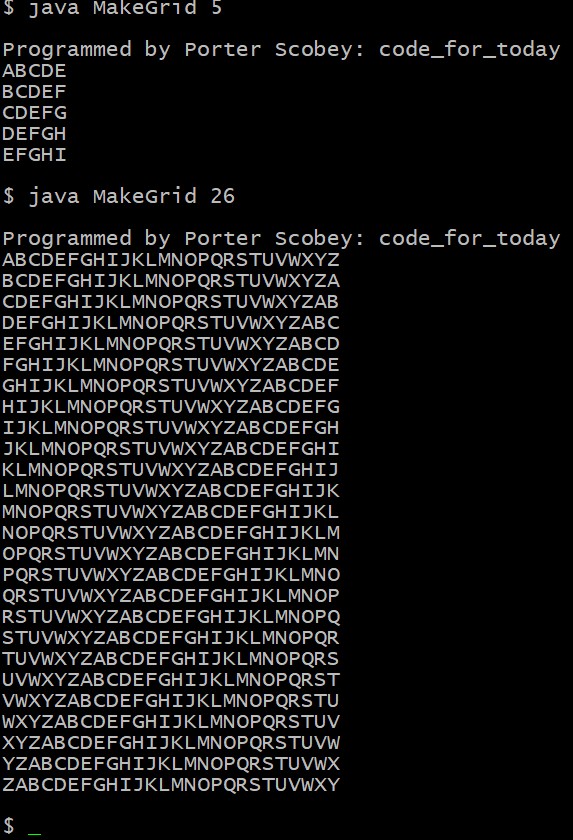
For this exercise you must design and write a java program file called
MakeGrid.java, which takes a single positive integer
command-line input n, which can be any value from 1 to 26 inclusive. The
program must first generate a 26 by 26 square grid containing all 26
uppercase letters of the English alphabet. The first row of the grid must
contain all 26 capital letters, in alphabetical order. The second row
contains the letters from the first row after one left-rotation. The
third row contains the letters from the second row after another left
rotation, and so on, until all 26 rows have been generated. Finally, the
program displays just the "top left" n by n portion of this 26 by 26
grid, where n is the input value entered on the command line. The sample
runs in the screenshot below illustrate sample input and output, as well
as the required output format, and your program must exhibit the same
behavior, and have exactly the same output format. Note that your program
must be capable of displaying anything from the single letter at the top
left of the grid to the full 26 by 26 square grid. The program does not
require any error checking.
-
When you are finished, create the subdirectory
u##/test/MakeGrid in your server account, copy your
MakeGrid.java to that subdirectory, and indicate your
readiness for testing in the Zoom Chat window.
-
As was the case for the previous hands-on exercise, the grid you produce
for this exercise will also be useful for Submission 01 that uses the
Vigenere encoding/decoding scheme, since the largest table (26 by 26)
that your program can produce for this exercise is actually the Vigenere
table (or grid, or square) that you need for Submission 01.
Hands-On Exercise for Week of Mon, Sep 15, 2025 (RotateLeft)
(code_for_today: Y659)
-
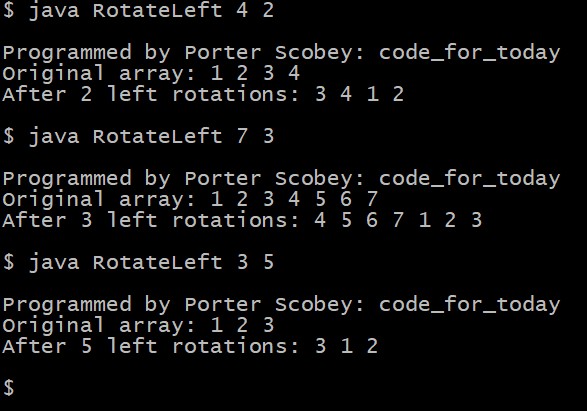
For this exercise you must design and write a java program file called
RotateLeft.java, which takes two command-line inputs. The
first is a positive integer n, indicating that your program must create
an array containing the values from 1 to n, inclusive. The second is also
a positive integer, indicating how many "left rotations" must be applied
to those n values. The sample runs in the following screenshot illustrate
sample input and output, as well as the required format for that output,
and your program must exhibit the same behavior, and have exactly the
same output format. The program does not require any error checking.
-
When you are finished, create the subdirectory
u##/test/RotateLeft in your server account, copy your
RotateLeft.java to that subdirectory, and indicate your
readiness for testing in the Zoom Chat window.
-
The technique you need for this exercise will also be useful for
Submission 01 that uses the Vigenere encoding/decoding scheme.